[IIS] Action
Q100062: [IIS] Action
Changes the run state on IIS application pools or web sites. Note that this requires the 'IIS Management Scripts and Tools' option to be installed with IIS on the target server.
| Parameter | In/Out | Description | Other Info |
|---|---|---|---|
| IIS Connection | In | IIS Host connection information | Connection type: sysIIS |
| Action | In | Choices: Start, Stop, RecycleAction to perform. |
|
| Website | In | A specific website, blank for none, * for all. | |
| Application Pool | In | A specific application pool, blank for none, * for all. | |
| Status Wait Timeout | In | Seconds to wait for status changes (if required for operation). | Default: 10Minimum: 1Maximum: 1000 |
(Italics = required parameters)
Notes
The [IIS] Action module allows your job to perform Start, Stop and Recycle actions on the locally installed instance of IIS, or a server on your network running IIS. When you are only performing actions on the local IIS, you can leave the Server Name and Login information parameters blank. However, these values must be supplied when you want to perform the action on a server different from where JobServer is running on your network.
The start and stop actions should be fairly obvious, but Recycle action will cause a currently running site or application pool to first be stopped temporarily, and then restarted right away.
The Website and the Application Pool parameters are both independently optional, but either one of them must be specified for a successful job step. If a value is supplied for the Website parameter, then the action is performed on the named website. If an asterisk is specified, then the action is performed on all websites on the IIS server. If a value is supplied for the Application Pool parameter, the the action is performed on the named application pool. If an asterisk is specified, then the action is performed on all application pools on the IIS server.
Diagnosing Errors
This section covers topics related to error messages you might see if your parameters are not correct or a variety of other conditions. These should help you find answers to diagnosing any errors you might encounter.
The RPC server is unavailable.
This error message indicates that the target server is not responding to a connection attempt from the JobServer. This could be due to firewall rules blocking access to the necessary ports that need to be open for the module to communicate with it. The following article has detailed information on configuring Microsoft Windows Firewall for access.
Setting Up a Remote WMI Connection
Invalid namespace ---> System.Management.ManagementException
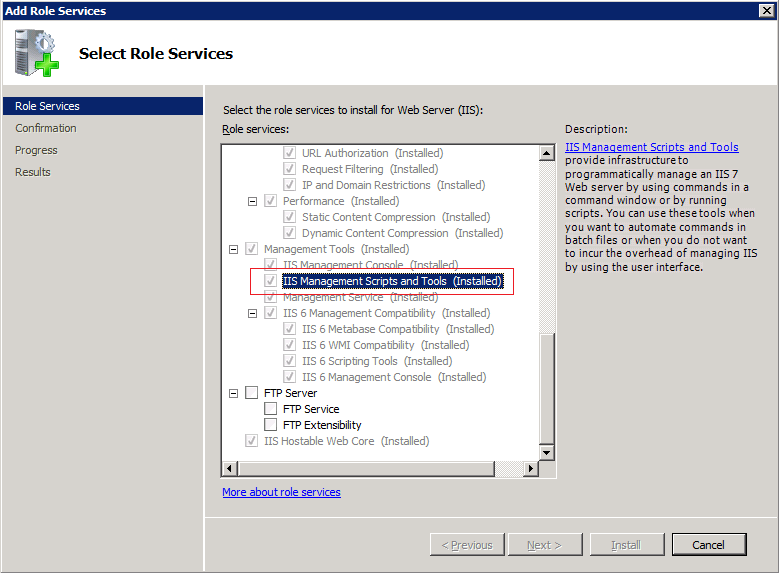
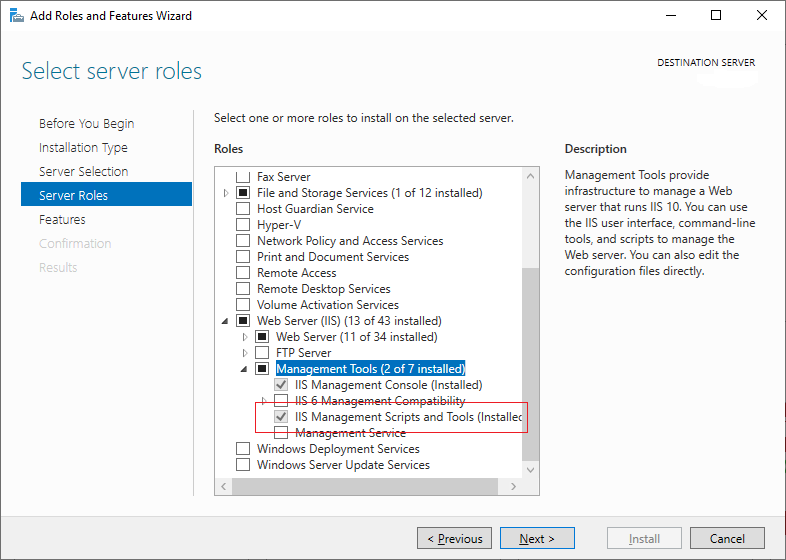
This error message indicates that the target server does not have the IIS Management Scripts and Tools option installed. In such a case, the management tools just need to be installed on the target IIS server. This is accomplished be the steps outline below. As long as this is the only option being changed, adding this to your IIS installation does not require a restart of the webserver or the operating system. If you make other changes at the same time, this may not apply.
- Open the
Server Managerapplication by typing this into the Run/Search option on the Windows Start menu. - In the
Server Managermenubar, select theManagemenu, then selectAdd Roles and Featuresfrom the drop down menu. - Depending on your Windows version, when you get to the
Role ServicesorServer Rolessection.- If
Role Services, look underManagement Tools, then locate theIIS Management Scripts and Toolsoption. - If
Server Roles, look underWeb Server (IIS), thenManagement Tools, then locate theIIS Management Scripts and Toolsoption. - If the option is unchecked, click and add the check to the installation option, and continue with the installation.
- If